Yale Digital Door Viewer Auto Imaging 5800
Getting Started
What's in the box?
- 4.3" LCD Display Screen x 1
- Camera/Doorbell x 1
- Fixtures & Fixings
- Batteries (4xAAA)
- 4GB Micro SD card is included
What are the key features of the Yale Digital Door Viewer Auto Imaging 5800?
- Integrated 80dB Doorbell for clear visitor alerts.
- 4.3" LCD screen for easy viewing and identification of visitors.
- 4 GB micro SD card included.
- Automatic image and video capture when motion is detected.
- Time and date stamps included on recordings.
- Infrared night vision for visibility in the dark.
- Wide viewing angle of 110 degrees.
- Easy operation with a touch button for visitors.
- Weather-Resistant (IP56 Rated) for reliable outdoor performance.
- Easy Installation on doors with thickness between 38mm – 110mm.
What are the specifications of the Yale Digital Door Viewer Auto Imaging 5800?
- Motion sensor picks up movement and takes an image or records a video
- Fits standard 14mm hole from mechanical door viewer
- Size 138 x 86 x 20mm
- Weight 384g
- Door thickness 38-110mm
- Large 4.3" LCD screen
- 0.3 MP camera
- 110 degree viewing angle
- Infrared night view
- Includes 4GB memory card
- 4 pcs. AAA batteries included
Where should I install the Yale Digital Door Viewer Auto Imaging 5800 on my door?
We recommend installing the the Doorviewer:
- At eye level
- Clear from obstructions on the door, for example a door knocker
- Flush against the door
Can the Yale Digital Door Viewer Auto Imaging 5800 store images or video clips?
This product can automatically capture and store images and videos with time and date stamps when motion is detected.
Support for Getting Started
Everyday Use
How do I live view my Yale Digital Door Viewer Auto Imaging 5800?
To activate live view on your Yale Digital Door Viewer Auto Imaging 5800, press the power button once to activate the screen. You can press the button again to turn off the screen manually, or it will automatically switch off after 10 seconds.
What is the expected battery life of the Yale Digital Door Viewer Auto Imaging 5800?
The Yale Digital Door Viewer Auto Imaging 5800 is powered by 4 AAA batteries and designed for energy efficiency. Thanks to its automatic shut-off feature after 10 seconds of use, the device can typically last between 2 to 4 months, depending on how frequently it's used. For best results, we recommend using high-quality alkaline batteries.
How do I change the batteries on my Yale Digital Door Viewer Auto Imaging 5800?
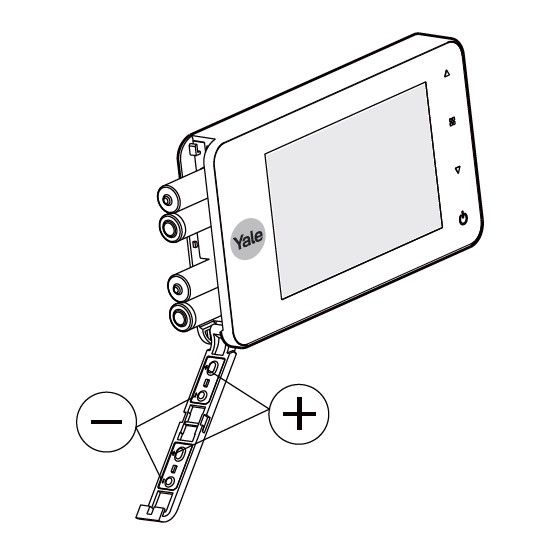
To change the batteries, simply push and slide to release the battery cover, as shown in the image below. Be sure to insert the replacement batteries following the correct polarity as shown in the image.
Can I use rechargeable batteries in the Yale Digital Door Viewer Auto Imaging 5800?
While it is technically possible to use rechargeable AAA batteries, we do not recommend it for the following reasons:
- Lower voltage: Rechargeable batteries typically provide 1.2V each, compared to 1.5V from alkaline batteries. With four batteries, this results in a 1.2V drop in total power, which can reduce performance and lead to more frequent battery replacements.
- Temperature sensitivity: Rechargeable batteries tend to perform poorly in cold environments. If the device is installed in a shed or garage, low temperatures during winter may affect battery efficiency and compromise reliability.
Is it possible to mount the Yale Digital Door Viewer Auto Imaging 5800 outdoors, for example on an outdoor gate?
The Yale Digital Door Viewer Auto Imaging 5800 internal view screen is not IP rated, meaning it is not waterproof or weather-resistant. As such, it is intended for indoor use only and should not be installed in areas exposed to rain or moisture.
Support for Everyday Use
Troubleshooting
I am struggling to see at night on my Yale Digital Door Viewer Auto Imaging 5800
This product does include infrared night vision. If however you are still struggling to make out images at night, you will need to consider options to increase the ambient light level, for example a low level security light.
My Yale Digital Door Viewer Auto Imaging 5800 is dead or unresponsive when I press the power button
If your Door Viewer is unresponsive, please check the following:
- Ensure that the batteries are inserted the correct way, following the polarity in the diagram below.
- Try changing the batteries for a fresh set of quality alkaline batteries.
The camera image on my Yale Digital Door Viewer Auto Imaging 5800 is not working or has an issue when I press the power button
In this case, please follow the process below to troubleshoot:
- Carefully remove the viewer from the mount. Be careful when pulling it away, as the cable will be connected.
- Firstly, inspect the cable that runs from the camera and into the viewer. Ensure that it has not be pinched, trapped or damaged.
- Next, ensure the cable connector is securely plugged into the viewer.
Once these checks have been done and you have fitted the viewer back in place, please try the viewer again.
My Yale Digital Door Viewer Auto Imaging 5800 screen is stuck on and will not respond to the power button
In this case, please manually reboot the device by removing the batteries for a few seconds and then re-inserting them, as per the image below.
The batteries on my Yale Digital Door Viewer Auto Imaging 5800 are draining much quicker than expected
The Yale Digital Door Viewer Auto Imaging 5800 is powered by 4 AAA batteries and designed for energy efficiency. Thanks to its automatic shut-off feature after 10 seconds of use, the device can typically last between 2 to 4 months, depending on how frequently it's used. If you are experiencing signficantly less than this, please check the points below.
- Avoid using rechargable batteries as these typically deliver a lower voltage (1.2V vs. 1.5V for alkaline), which will impact device performance and battery life. Additionally, they can be sensitive to cold temperatures, so if your device is installed in an unheated space like a shed or garage, winter conditions might affect reliability.
- Damage to the cable which runs from the camera and into the viewer could also impact battery life. Inspect this to ensure that it has not be pinched, trapped or damaged.
Support for Troubleshooting