Troubleshooting your Yale Smart Alarm
Here you can find the answers about Troubleshooting your Yale Smart Alarm.
Troubleshooting FAQ's
1. Check to ensure the device has power- the Hubs white LED should be illuminated to indicate this. If it is not, then please check the Hubs power supply is plugged in, and that it is also connected to a working plug socket.
2. Ensure no warning LED's are present on the Smart Alarm Hub:
- White LED - This shows normal operation, and the unit is switched on. (Unless user has disabled this in the settings)
- Red LED (image of a cloud) - This shows the Hub is not communicating with the Yale cloud and is disconnected. This most likely means that there is an issue with the internet connection to the Hub.
- Orange LED (warning triangle) alerts you that the system needs attention. Check your Yale Home app to see what the warning relates to.
3. Ensure Bluetooth is turned on your mobile device for the initial setup stage, as the Alarm Hub would not be online and first communicates to the mobile device over Bluetooth.
4. Use your mobile device to check your internet connection, there are many free speed test apps available to assist with this.
5. If using an Ethernet connection, ensure one end of the cable is connected in the Yale Smart hub, and the other end is plugged into the back of your router.
6. Try rebooting your router and the alarm hub by following the process below:
- Remove the back plate from the hub.
- Unplug the power cable and Ethernet (if using) from the hub.
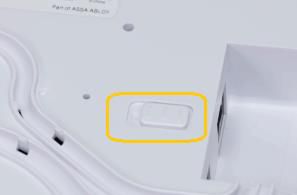
- Turn the battery switch off on rear of the hub (off means that the dot symbol will be visible).
- Restart your router and wait for your internet connection to come back online (usually within 3-5 mins).
- Reconnect the hubs power cable and also Ethernet (if using).
- Turn the hubs battery switch back to the on position.
- Allow 60 seconds for the alarm hub to come back online
7. If the steps above fail to resolve the issue, please contact Yale Customer Support.
Check the batteries are inserted correctly and the plastic travel/packaging strip is removed.
During the learning process, ensure you have activated the device tamper button.
To resolve this issue, please check the following in the Yale Home app:
- Open the Yale Home app.
- Go to Access and select the relevant user.
- Ensure that the user has an Alarm Code set up in the app.
- Confirm that the correct code is being used to disarm the alarm.
Note:
The alarm can only be disarmed if the user has a valid alarm code assigned in the app. If the code is missing or incorrect, the system will not disarm.
Check the Yale Smart Alarm hub is connected to the internet:
- Open the Yale Home app.
- Tap All Devices.
- Select your Yale Alarm Hub.
- Tap the Alarm Hub again to open its settings.
- Under Utilities, select Network Settings.
- Here you can check Ethernet and Wi-Fi connection.
You can also check:
- Check the ethernet cable is connected at both ends, if using ethernet.
- Check if other devices in the same household are offline, the local network itself may be offline.
If your siren activates as soon as you enter, it’s likely that your entry sensor is not set to Entry Delay mode. This mode gives you time to disarm the system before the alarm sounds.
Step 1: Check Your Sensor Settings
You should have one entry zone sensor, typically placed at the front door. To check or adjust its mode:
- Open the Yale Home app.
- Tap All Devices.
- Under Accessories, select your entry zone sensor.
- Scroll to Device Modes.
- Adjust the sensor behavior for each mode:
- For Away or Home mode, select Entry Delay if you want a countdown before the alarm triggers.
Tip: Entry Delay mode allows you to enter the property and disarm the alarm before it activates.
Step 2: Adjust Entry or Exit Delay Time
To set how long the system waits before activating the alarm:
- Open the Yale Home app.
- Tap All Devices.
- Select your Yale Alarm Hub.
- Tap the Alarm Hub again to access its settings.
- Choose Security Areas.
- Select the area you want to adjust.
- Choose the mode to update (Home or Away).
- Tap Entry Delay or Exit Delay.
- Set your desired delay time (between 0 and 120 seconds).
Your new delay settings will now apply to the selected mode and area.
This is to alert you to a problem that has been registered by the Yale Smart Alarm Hub, normally this is to warn you of a low battery or tamper alert.
Check the Yale Home app, on the Alarm dashboard screen there will be a notification that you can open for specific information on what is triggering the alert.
If your Yale Smart Alarm Hub beeps every 15 minutes and displays a red cloud icon, this means the hub is not connected to the internet or Yale cloud services.
How to Check and Restore Internet Connection:
- Open the Yale Home app.
- Tap All Devices.
- Select your Yale Alarm Hub.
- Tap the hub again to open its Settings.
- Under Utilities, select Network Settings.
- Review the status of both Ethernet and Wi-Fi connections.
Additional Checks:
- If using Ethernet, ensure the cable is securely connected at both ends.
- Check if other devices in your home are offline — your local network may be down.
If you’re receiving a notification of “Supervision Failure”, this means one of your accessories may be out of range of the Yale Smart Alarm Hub.
What to do:
- Check the device triggering the warning to ensure it’s within range of the Hub.
- If the warning persists, you can disable Supervision Mode for that specific accessory — although this is not recommended for security reasons.
What is Supervision Mode?
Supervision Mode alerts you when any accessory loses connection with the Yale Smart Alarm Hub.
How to disable Supervision Mode for a device:
- Open the Yale Home app.
- Tap All Devices.
- Under Accessories, select the affected device.
- Scroll to Notifications and toggle off Supervision Mode.
If you continue to experience issues, please contact Yale Support for further assistance.
There should always be a reason for which the Yale Home app sends you a notification.
Check the activity feed in the Yale Home app to see what has triggered the app notifications. The activity feed will list all events from all accessories connected. (for example, critical battery, tamper alert, etc).
Check you have not enabled the button lock function on the Yale Keyfob.
The Yale Keyfob has the ability to lock the buttons to prevent you from pressing them when in your pocket or bag. To activate this feature, press the hold the Home arm (part arm) button down for 3 seconds. This will lock the buttons and the red LED will flash. To unlock the buttons press and hold the Home arm (part arm) down for 3 seconds the green LED will flash to indicate the buttons are unlocked.
This indicates the internal battery is low and the unit needs to be replaced. The batteries are sealed inside the unit and can't be replaced. The expected battery life is 10 years.
If your Yale Button isn’t triggering a panic alarm, please follow these steps to ensure it’s set up correctly:
-
Triggering the Panic Alarm
To activate panic mode, press and hold the Yale Button for 2 seconds. A short press will not trigger the alarm. -
Check Device Settings in the Yale Home App
If the panic alarm still doesn’t activate, verify that the Yale Button is configured correctly:
- Open the Yale Home app.
- Scroll down and tap All Devices.
- Under Accessories, select your Yale Button.
- From under Utilities, select Button Mode.
- Ensure the mode is set to Panic (not Doorbell).
If the issue persists after confirming these settings, please contact Yale Support for further assistance.
Turn the mains power off, followed by the backup battery off for 10 seconds.
The backup battery switch is highlighted below, you will need to remove the Alarm Hub back cover to access the switch.
The PIR LED will only flash during test mode. Once set up, during day-to-day use, the LEDs will not flash.