Everyday Use with the Yale Smart Video Doorbell
Here you find Everyday Use help for the Yale Smart Video Doorbell.
Everyday Use FAQ's
You can capture footage in two ways using the Yale Home app:
1. Event-Based Recordings
The doorbell automatically records video clips when motion is detected. These recordings are triggered based on your motion detection settings. To adjust these:
- Open the Yale Home app
- Go to your Doorbell settings
- Customize the motion detection and recording preferences
2. Manual Capture via Live View
You can also manually record video or take snapshots while viewing the live feed:
- Open the Yale Home app
- Navigate to the Live View page for your doorbell
- Tap Record to save a video clip
- Tap Snapshot to capture an image
This gives you flexibility to either rely on automatic recordings or manually capture moments as needed.
For all event-based recordings, the videos will be stored in the units built-in flash memory and accessed via the activity feed in the Yale Home app. If you have a Yale subscription plan, then the recordings will be securely stored in the Yale cloud instead of the units local flash memory.
For on-demand video recordings or image snapshots, all media is stored in the mobile phone's storage and can be accessed through the built-in media gallery in the mobile operating system.
Click here to view more information on the Subscription services.
All event footage is displayed in your Yale Home apps Activity feed, scroll to the date and time, select the video and play.
With the Yale Home app you can receive real time notifications when a motion event is detected and check the activity feed.
In the Yale Home App, select the Activity Feed menu as shown highlighted in grey in the image below:
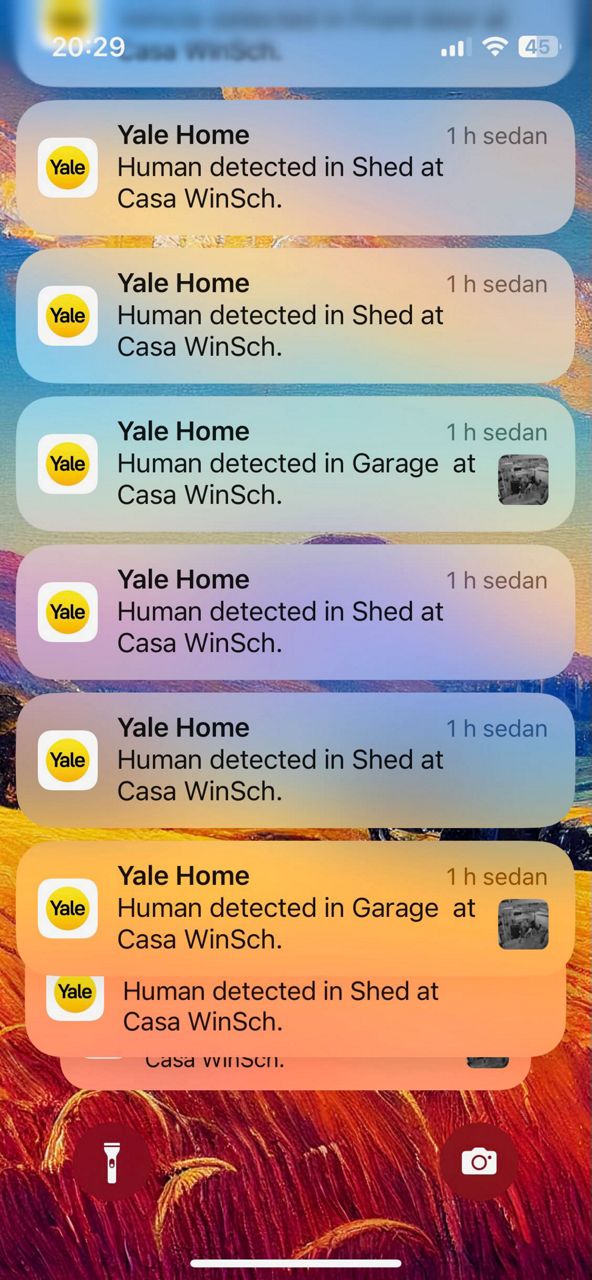
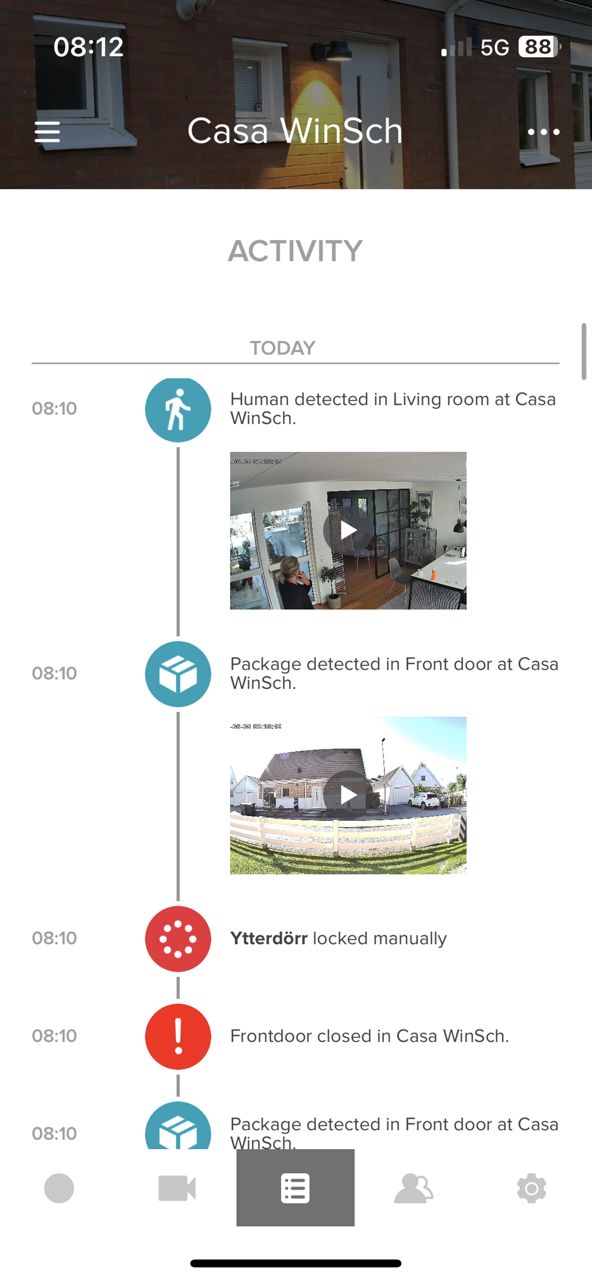
Image for illustration purposes only, activity feeds vary depending on camera model and subscription features.
When used without a subscription plan, the Yale Smart Video Doorbell stores video clips in its built-in flash memory. Here's a breakdown of its local storage capacity:
Storage Duration:
- At 720p resolution: Stores approximately 3–4 days of footage.
- At 1080p resolution: Stores approximately 2 days of footage.
Clip Details:
- Up to 20 clips per day, each around 10 seconds long.
- Total local storage capacity is about 5 minutes of video at any time.
Storage Management:
- Once full, the oldest clips are automatically deleted to make room for new ones.
Cloud Behavior:
- When a clip is viewed, it is uploaded to the cloud and stored for 72 hours.
- If not viewed before being deleted from local storage, only a thumbnail remains in the activity feed (the full clip cannot be accessed or downloaded).
Note: To retain clips longer or access them remotely, consider subscribing to a Yale cloud storage plan. Click here to view more information about our Subscription services.
To change the video resolution in the Yale Home app:
- Open the Yale Home app.
- Tap your Doorbell on the dashboard.
- Tap the Settings icon in the top-right corner.
- Scroll down to Video Settings and tap Video Quality.
- Choose your preferred resolution:
• High (1080p) for better image quality
• Medium (720p) to save bandwidth or storage
Yes, you can customize the clip length in the Yale Home app. Here's how:
- Open the Yale Home app.
- Tap your Doorbell on the dashboard.
- Tap the Settings icon in the top-right corner.
- Scroll down to Motion Detection Settings and tap Clip Length.
- Use the slider to adjust the clip length between 10 and 60 seconds.
You can customize the motion detection settings in the Yale Home app:
- Open the Yale Home app.
- Tap your Doorbell on the dashboard.
- Tap the Settings icon in the top-right corner.
- Scroll down to Motion Detection Settings.
From here, you can:
- Enable Human-only detection
- Adjust motion detection sensitivity
- Configure the motion detection zone
- Set the Motion Detection Re-trigger Time (between 10–60 seconds) to reduce frequent alerts
These adjustments can help you minimize unnecessary notifications while still keeping your home secure.
You can access the live view instantly through the Yale Home app. Just open the app and tap the Doorbell Camera tile on your dashboard — the live feed will launch right away.
How to Set Up a Privacy Zone in the Yale Home App:
- Open the Yale Home app.
- Tap your Doorbell from the dashboard.
- Tap the Settings icon (top-right corner).
- Scroll down to Video Settings.
- Tap Privacy Zone.
- Select Create Privacy Zone and use the on-screen tools to block out areas of the image you don’t want to be visible or recorded.
Note: Areas blocked by a Privacy Zone will not be recorded, and they will not trigger motion detection or send notifications.
Under settings for the Yale Smart Video Doorbell you will have the option to use Detection Zones. This means that you can select areas in which you will not get motion detection alerts from, all other areas are your Detection Zones that will be active for motion alerts.
Under settings for the Yale Smart Video Doorbell, you will have the option to use Privacy Zones. This means that you can select areas in which you will not be able to view or record, they will be black areas. This is used when you want to avoid recording areas that are outside of your property area.
Under settings for your Yale Smart Video Doorbell in the Yale Home app you will find the option Utilities > Remove Device, selecting Remove device removes the device from your Yale Home account and resets the unit back to factory setting so a new user can set it up.
The LEDs you see around the lens are part of the doorbell’s night vision system, which helps capture clear images in low-light conditions. If you prefer not to use night vision, you can turn these LEDs off — but please note that image clarity at night will be reduced, so the area should be well-lit.
To turn off the Night Vision LEDs:
- Open the Yale Home app.
- Tap your Doorbell from the dashboard.
- Tap the Settings icon (top-right corner).
- Scroll down to Video Settings.
- Select Night Vision.
- Toggle the switch to turn off the Night Vision LEDs.
This is the status LED and illuminates when motion is detected, this allows your visitors to see the doorbell button at night.
You can check the Smart Video Doorbell battery level from the Yale Home app:
- Open the Yale Home app.
- Tap on the Doorbell from the dashboard.
- Tap the Settings icon (top right corner).
- Scroll down to Device Information.
The battery level will be dispayed here as a percentage.
To share access with another user, follow these steps in the Yale Home app:
- Open the Yale Home app on your mobile device.
- Tap Access at the bottom right of the screen.
- Select an existing user or tap Invite a User.
- If inviting a new user, choose App Access and follow the on-screen instructions.
- From your list of devices, enable Camera Access for the Yale Smart Video Doorbell.
What happens next:
- Existing Yale Home app users will receive a notification and see your home listed in the dropdown menu on their dashboard.
- New users will receive an invitation to download the Yale Home app and create a Yale Home account.
Note: The shared user will receive owner-level access to your Yale Smart Video Doorbell, which includes full control and settings management.
There is no limit to the number of users that you can share access to your Yale Smart Video Doorbell with.
When the Yale Smart Video Doorbell is pressed your mobile phone will notify you via an incoming call or a push notification. Answer the call or tap on the notification, to see, hear and speak to your visitors.
You can also select your Smart Video Doorbell from the Yale Home App dashboard, this will then open the live stream. From here you can select the speaker icon to hear or mute audio. You can also select the microphone icon to mute or unmute the microphone.
All users with shared access permissions will receive a notification via the Yale Home app. Each user has the ability to answer the call, listen, and speak.
However, only the user who answers the call will be able to communicate with the visitor. They will not be able to hear or speak with other users who also have access via the Yale Home app.
If no one answers the call, it will automatically time out and close after 30 seconds.
If you need additional support
You can get a more visual aspect of help related to our products from our download center and in our library for support videos.

