Getting Started with Yale Smart Video Doorbell
Here you can find help Getting Started with the Yale Smart Video Doorbell.
Getting Started FAQ's
- 1 x Yale Smart Video Doorbell
- 1 x USB C Cable
- 1 x Mounting Wedge
- 1 x Mounting Plate
- 1 x Double-sided Tape
- 2 x Wall screws
- 2 x Wall plugs
- 1 x Window Sticker
- 2 x Extension wires
- 1 x Fuse
- 1 x Security pin
- 2 x Doorbell back screws
- 4 x Wire caps
- 1 x Protected by Yale Sticker
- 1 x Quick Start Guide

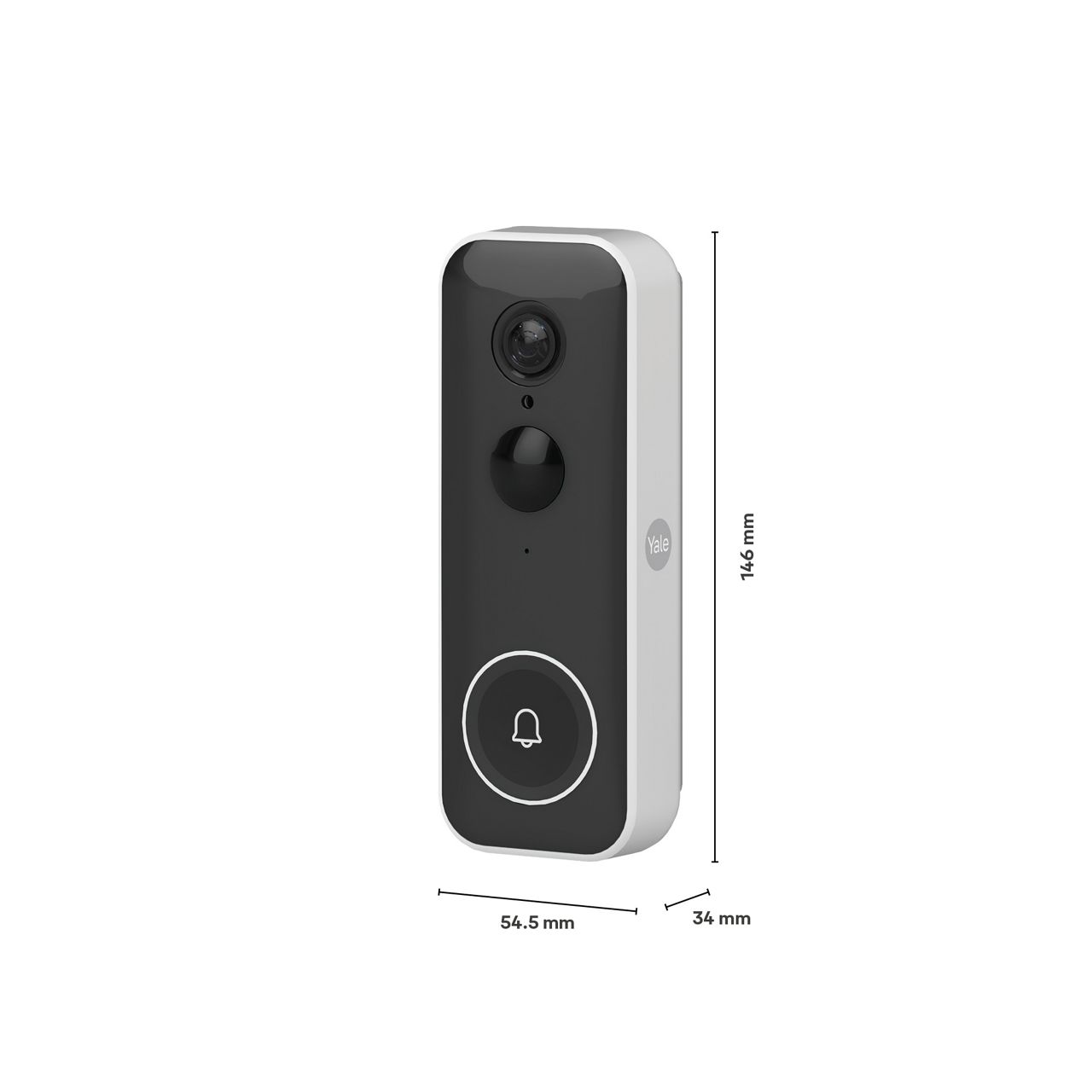
The weight is 220g
Yale Home is the application to use on your mobile phone. The app is available on Apple App Store or Google Play.
Download the Yale App from the App Store or Google Play depending on your device.


Once you have downloaded the Yale Home app you will need to click on create an account, or sign in if your already have an account.
Yes, you can! While your Apple Watch won’t show the live video feed, it will mirror notifications from the Yale Home app on your iPhone. That means you’ll get alerts on your watch — including a thumbnail notification — whenever someone rings the doorbell or motion is detected.
Yes, the Yale Smart Video Doorbell works when connected to a 2.4 GHz Wi-Fi network.
NOTE: It is not compatible with 5 GHz Wi-Fi networks.
Yes, if you are using a mesh network, please make sure that the camera is connecting to the closest mesh node
No, the Yale Smart Video Doorbell only has Wi-Fi connectivity and is compatible with 2.4 GHz networks.
Inside the box there is a metal security pin that you need to use. On the bottom part of the Yale Smart Video Doorbell you will find a small hole, insert the pin to release the unit from the backplate.
To power on the Yale Smart Video Doorbell, press the power button for one second, the power button is located on the rear of the unit. Follow the same process to power off the unit.
The power-on process can be viewed in step 3 of the Yale Smart Video Doorbell setup video, Click here to view How to set up your Yale Smart Video Doorbell.
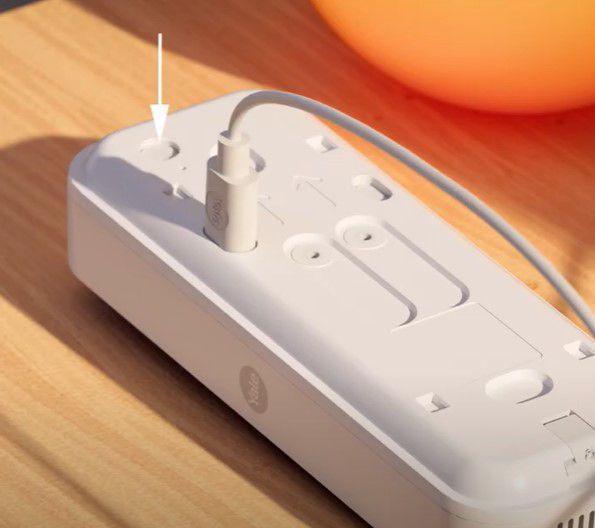
The QR code is located on the rear of the Yale Smart Video Doorbell.
The Yale Smart Video Doorbell needs to be wall mounted with the supplied fittings. Once the Doorbell has been setup with the Yale Home app, you can view the physical installation instructions in the device settings:
- Open the Yale Home app.
- From the dashboard, tap on the Doorbell.
- Tap the Settings icon from the top right corner.
- Scroll down to Installation Guide and select.
Alternatively, Click here to watch our video on how to setup your Yale Smart Video Doorbell.
The Yale Smart Video Doorbell can be installed onto a flat surface, however, if you need to position the Yale Smart Video Doorbell Camera toward a specific direction, you may use the multidirectional angle plate supplied in the box to angle your Yale Smart VideoDoorbell to the left or right.
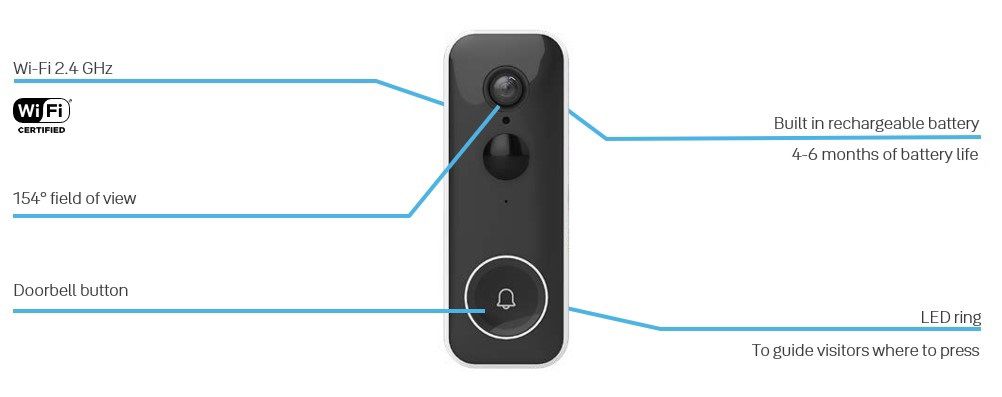
The viewing angle is 154 degrees and it has 4 x digital zoom with Wide Dynamic Range (WDR).
Motion Detection Disabled
- Mounting Height: Install the Video Doorbell at a height of at least 1.2 meters (approx. 4 feet) from the ground to ensure clear visibility of your visitor’s face.
- Wi-Fi Signal Check: Before installation, verify the Wi-Fi signal strength at the intended location.
- Open the Yale Home App
- Select your Video Doorbell
- Tap the Settings icon (top right corner)
- Scroll to Utilities > Wi-Fi Connection
- Ensure the status shows Good
- Adjusting the Angle: Use the supplied angled mounting wedge to optimize the viewing angle if necessary.
- Visitor Guidance: When a visitor approaches, the LED ring around the button will illuminate, guiding them to press the doorbell.
Motion Detection Enabled
- Battery Optimization: Adjust the viewing angle and motion sensitivity settings to help conserve battery life.
- Detection Zones: Configure detection zones to reduce unnecessary notifications and wake-ups.
- Avoid Busy Areas: Do not point the Video Doorbell directly at busy streets or high-traffic areas.
- Angle Adjustment: Use the angled mounting wedge to fine-tune the camera’s field of view.
- Sensitivity Testing: The Video Doorbell uses a PIR motion sensor to detect movement. You can test this to help you get the right setting:
- Open the Yale Home App
- Select your Video Doorbell
- Tap the Settings icon (top right corner)
- From the Motion Detection Settings section, select Motion Detection Sensitivity
- The device enters Test Mode, and the LED ring provides feedback.
- Detection range varies from 2.5 meters to over 8 meters, depending on the selected sensitivity level.
- Seasonal Adjustments: For best performance, consider adjusting motion sensitivity settings throughout the year to account for changes in environmental temperature.
The Yale Smart Video Doorbell contains a Microphone and Speaker for two-way audio, supporting Full duplex audio, echo cancellation, and G.711 ALAW audio codec.
Yes! You can use the Yale Doorbell Chime* — an accessory that pairs with your Yale Smart Video Doorbell.
Simply plug the chime into a power outlet, and it will emit a sound whenever someone presses the doorbell button, giving you an audible alert inside your home.
*Sold separately.
If you have a mechanical doorbell chime currently installed, it will need to be disconnected from the power supply, as it cannot be integrated with the Yale Smart Video Doorbell.
For optimal performance, we recommend using the dedicated Yale Doorbell Chime, sold separately. It’s designed to work seamlessly with the Yale Smart Video Doorbell and ensures reliable alerts throughout your home.
Yes, the Yale Smart Video Doorbell can operate using either its internal rechargeable battery or a mains power supply.
Power Options Explained
1. Internal Battery
- The doorbell includes a built-in battery that can be charged via the USB-C port located on the rear of the device.
- For optimal charging speed, use a 5V, 2A charger.
- Using a 1A charger will significantly increase charging time.
- Note: The doorbell does not support fast charging standards. Even if a fast charger is used, charging will occur at the standard 5V, 2A rate.
2. Mains Power Supply
You can also power the doorbell using one of the following wired options:
-
24V DC, 0.5A
- This is the output provided by the Yale AC adapter (sold separately).
- The adapter converts standard mains voltage (110–240V AC) to 24V DC.
-
8–24V AC
- Commonly used with traditional mechanical chimes powered by a bell transformer.
- In most countries (except the UK), the transformer is located in the central fuse box.
- To use this setup:
- Disconnect the old mechanical chime.
- Connect the doorbell screw terminals to the existing bell wires.
- Install the supplied inline fuse between the wires — this is essential for safe operation.
Installation Guide via Yale Home App
Once your doorbell is connected, follow these steps to access the installation guide:
- Open the Yale Home app.
- Tap on the Doorbell from the dashboard.
- Tap the Settings icon (top right corner).
- Scroll down and select Installation Guide.
Alternatively, Click here to watch our setup video.
No, you must replace the bell transformer with a transformer that supplies AC voltage in the range 8-24 V DC
The terminals on the rear of the Yale Smart Video Doorbell are not marked positive or negative, you can connect the power supply either way around.
Yes, it does. However, the internal battery of the Yale Smart Video Doorbell remains charged and acts as a backup in case of a power outage.
Important:
Do not connect 110–240V mains power directly to the doorbell camera terminals, as this can cause permanent damage. Instead, use a compatible 8–24V DC power supply, such as the Yale AC Power Adaptor, which is designed specifically for safe operation.
Once your doorbell is connected, follow these steps to access the installation guide:
- Open the Yale Home app.
- Tap on the Doorbell from the dashboard.
- Tap the Settings icon (top right corner).
- Scroll down and select Installation Guide.
Alternatively, Click here to watch our setup video.
Yes, the battery remains charged and is used as a backup in the event of power cut.
Yes - if the battery level is below 20% and no power source is connected, the setup process cannot begin. To ensure a smooth setup, we recommend connecting the doorbell to a power source before starting.
It will take approximately 5-6 hours to fully charge the Yale Smart Video Doorbell from a flat battery, using a 2A charger. With a 1A charger it can take about 1 hour longer.
Battery life varies depending on usage patterns and which features are enabled—such as motion detection, live streaming, and night vision. Under typical conditions (low to moderate activity), a fully charged battery can last approximately 4 to 6 months.
You can check the Smart Video Doorbell battery level from the Yale Home app:
- Open the Yale Home app.
- Tap on the Doorbell from the dashboard.
- Tap the Settings icon (top right corner).
- Scroll down to Device Information.
The battery level will be dispayed here as a percentage.
-
Operating Temperature:
−20°C to +50°C -
Charging Temperature:
0°C to +45°C
Important Safety Note:
To protect your battery and ensure safe operation, charging is disabled at temperatures below 0°C (freezing), even if the doorbell is plugged in. This is a built-in safety feature to prevent permanent battery damage.
- Yale Doorbell Chime
- Yale AC Power Adapter
Click Here for more information on accessories.
No, if the Yale Smart Video Doorbell is installed with the Yale AC Power Adapter, there is no need to install an inline fuse.
No, it is not designed to do this. The Yale Smart Video Doorbell is only compatible with the Yale Doorbell Chime.
Click Here to see our support article on the Yale Doorbell Chime.
Cloud Recording
Video is captured and automatically routed to a secure cloud server, where it is saved for 30 days
AI Motion Detection
Advanced AI-based camera analytics enables the cameras to differentiate between the motion of people, pets, vehicles, and delivery packages in real-time, and the user can choose to enable or disable notifications when motion is detected from these specific groups.
Click here to view more information on the Subscription services.
Yes, night vision is up to a range of 6 meters.
No, the batteries are built-in and rechargeable.
If you need additional support
You can get a more visual aspect of help related to our products from our download center and in our library for support videos.

