Everyday Use with Yale Smart Code Handle
Here you can find the answers about Everyday Use with the Yale Smart Code Handle
Everyday Use FAQ
The Yale Smart Code Handle can be operated via the Yale Home App. You can share access to guests from the Access section of the app dashboard.
Handle code can be used using the pin numbers on the Yale Smart Code Handle itself and also configured via the Yale Home App.
Entry code access is also possible if a Yale Smart Keypad is installed.
The Yale Smart Code Handle can easily be operated locally using the Yale Home app- as long as you're within Bluetooth range.
Yale Smart Code Handle does not have built-in Wi-Fi. If you wish to control your handle remotely (when you're not nearby), you'll need a Yale Connect Wi-Fi Bridge (sold separately). This Bridge connects to your 2.4 GHz Wi-Fi network and communicates with the handle via Bluetooth, enabling remote access through the Yale Home app.
If you choose not to use the Wi-Fi Bridge, you can still operate the handle locally using the Yale Home app- as long as you're within Bluetooth range.
This question has its own page. Click here to read the full answer.
The Yale Smart Keypad or Yale Smart Keypad 2 - Fingerprint must be paired to the Smart Code Handle, in order to create and use personal entry codes.
Once you have set up the Keypad, follow the steps below to find, update, and use your personal Entry Code.
To find your personal entry code:
- Open up the Yale Home App.
- Select Access from the bottom of the screen.
- Select yourself from the Guest List to get to My Access.
To update your personal entry code:
Your personal entry code(s) appears below the associated lock if there are multiple locks. Depending on the settings on the lock, it may be blanked out as a security precaution. If this is the case you will need to authenticate with your phones passcode/biometrics to view the code. If you want to update an existing personal entry code, follow the steps above, then:
- Select the Entry Code you wish to change.
- Enter a new code (first time setup) or, select Manage Entry Code and then enter a code.
- Select Save to confirm.
To use your Personal Entry Code:
- Enter your personal entry code on the keypad
- Press the Yale button, or tick, depending on the keypad model.
- The keypad light will pulse and then flash when the lock operation has been completed.
Entry codes need to be between 4 and 6 digits and a user may have up to 220 entry codes on a lock.
Guests with keypad access have a Yellow circle with a hash symbol to the right of their name in the Guest List. If you have assigned Entry Codes to guests, follow the same steps to update their personal entry codes from within the Yale Home App.
By default, Yale Smart Locks make sounds when locking and unlocking the door. It is easy to modify these settings by following the steps below:
- Open the Yale Home App.
- Select your lock and then tap the gear icon in the top right of the screen to get to Lock Settings.
- Scroll to Device Settings and select.
- From here you can adjust the lock sounds to your preference.
If you are the only app owner for the Yale Smart Lock and wish to delete because you no longer require access to it, you will need to factory reset the lock to remove it from your account. Factory resetting the lock will also remove all other associated accounts from the lock.
- Ensure you are within Bluetooth range of the lock (4 metres).
- Open the Yale Home app.
- Select your lock and then the settings icon.
- Scroll down to Utilities, select Factory Reset and follow the onscreen prompts.
- The lock has now been reset and removed from your Yale Home app.
If you are a Guest user for a lock and you want to remove the device from your account:
- Open the Yale Home app, select "Access” from the bottom of the screen.
- Select your profile.
- Select "Remove User".
Access levels and schedules determine how much access a lock user has as well as when they have permission to control the lock.
Yale offers 2 access levels: Owner and Guest. A lock Owner has full access to the lock and Guests have limited access (outlined under Access Levels). Only lock Owners can invite Guests to a lock. When inviting Guests, you can customize their access level and choose to be notified when they operate your lock.
There are also different Access Schedules: Always, Recurring, and Temporary (outlined under Access Schedules).
Access Levels
Owners
Lock Owners are users who:
- Can lock and unlock the door via the Yale Home App
- Can lock and unlock the door via Personal Entry Code (Using Smart Keypad)
- Can use Auto-Unlock
- Can invite/remove other owners
- Can control all lock settings
- Can view the activity feed
- Can view the guest list
Guests
Guest is the default access level for anyone invited to your Yale Smart Lock, but you can update a person's access level when you invite them to your lock or at any time thereafter. Guest users:
- Can lock and unlock the door via Yale Home App*
- Can lock and unlock the door via Personal Entry Code (Using Smart Keypad)
- Cannot use Auto-Unlock
- Cannot invite/remove other owners
- Cannot control all lock settings
- Cannot view the activity feed
- Cannot view the guest list
*Cellular data or an Internet connection is required. Due to the 3 Guest Access Schedules, our servers need to verify that the guest is connecting during the time frame that they are authorised.
For information on how to change a guest to an owner click here
Access Schedules
Always - Guests will have unlimited access, but the owner can change or delete their access at any time.
Recurring - Guests will have a scheduled access that repeats. i.e. guests will be invited every Tuesday for a short period of time.
Temporary - Guests will have a limited invitation to your home that expires. i.e. guests will have access for a one-time use, limited to the date and time you've selected.
The Yale Home App offers 2 access levels: Owner and Guest. Guest is the default access level for anyone invited to your Smart Lock, but you can update a person's access level when you invite them to your lock or at any time thereafter.
PLEASE NOTE: Guests need to create an account and download the Yale Home App.
Select either iOS or Android (depending on your device) for steps to change Access Levels.
iOS
Changing a Guest to an Owner
- Open the Yale Home App and within the house where your lock is, select the Access Icon from bottom of the screen
- Select the Guest you want to edit
- Select Owner to change the Access Level from Guest to Owner
- A yellow tick will display beside your selection
- Select the back arrow to confirm changes
Your Guest is now an Owner and will display as an Owner in your Guest List
You can change a user's access level back to Guest at any time by completing these steps again and selecting Guest from the Access Level options.
Lock Owners
Users with Owner Access can:
- Lock and unlock door via Yale Home App
- Use Auto-Unlock
- Invite/remove guests and owners
- Control all lock settings
- View activity feed
- View guest list
- Operate the lock remotely via Yale Connect Wi-Fi Bridge
Guests
Users with Guest Access can:
- Lock and unlock the door via the Yale Home app
- Not use Auto-Unlock
- Not invite/remove guests and owners
- Not control all lock settings
- Not view activity feed
- Not view guest list
PLEASE NOTE: Guests can not operate the lock remotely
Android
Changing a Guest to an Owner
- Open the Yale Home App and within the house where your lock is, select the select the Access Icon from bottom of the screen
- Select the Guest you want to edit
- Change the Access Level from Guest to Owner
- Select the "Save Changes" option at the bottom of the screen to save your changes
Your Guest is now an Owner, and will display as an Owner in your Guest List
You can change a user's access level back to Guest at any time by completing these steps again and selecting Guest from the Access Level options.
Lock Owners
Users with Owner Access can:
- Lock and unlock door via Yale Home App
- Use Auto-Unlock
- Invite/remove guests and owners
- Control all lock settings
- View activity feed
- View guest list
- Operate the lock remotely via Yale Connect Wi-Fi Bridge
Guests
Users with Guest Access can:
- Lock and unlock door via Yale Home app
- Not use Auto-Unlock
- Not invite/remove guests and owners
- Not control all lock settings
- Not view activity feed
- Not view guest list
PLEASE NOTE: Guests can not operate the lock remotely
It is very simple to manage and view all of your properties, or homes in the Yale Home app. If you have multiple properties, you can create keys (houses) for each of them within the app.
You can choose to add a new house to your app when you set up a new device. Follow the steps below to do this:
- Open the Yale Home app.
- Select to top right "+" option to set up a device.
- Scan the device QR code (select "Help me find QR code" if unsure where to find this).
- Select "Start".
- Select "Continue" and then "Begin Setup". The Yale Home app will then scan for the new device.
- Once the app finds the device, you will then be able to select from a list of your existing properties, as well as "Create a New House". Select the latter option if you want to create a new key (house).
- When prompted, give your house a name, a photo (if you wish) and then select "Continue".
Continue setting up the device by following the onscreen instructions. The next time you open your Yale Home app home screen, you will see the new house in the app. You will also be able to select this house, during set up for new devices going forward.
You can reset your password through the ' forgotten password' flow on the log-in page of the Yale Home app
Alternatively, use this link https://account.aaecosystem.com/login and select forgot password.
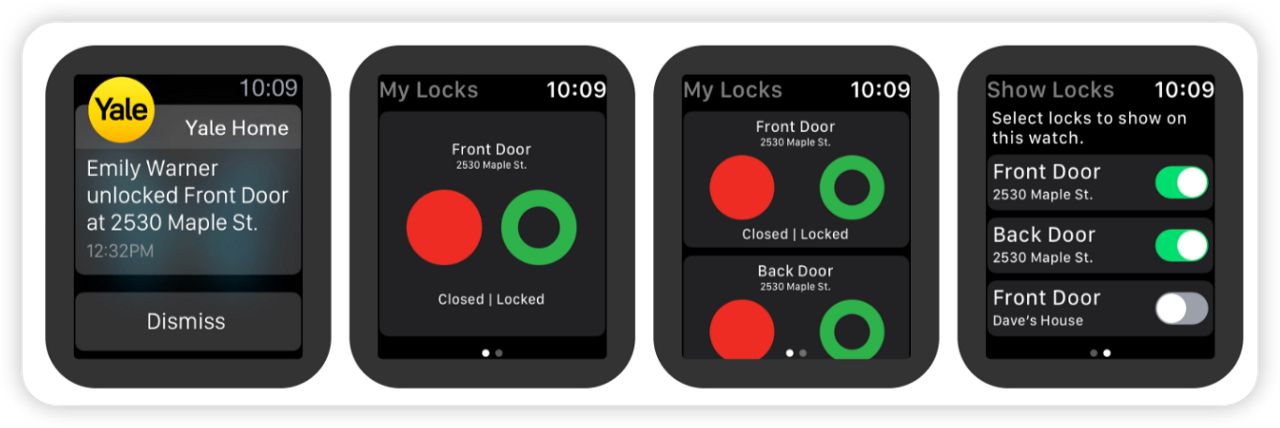
If you have an Apple Watch and a Yale Smart Lock connected to the Yale Home app, you can use your Apple Watch to operate the device.
Firstly, ensure that you have installed the Yale Home app on your Apple Watch. You can do this using the "Watch" app on your iPhone.
Open the Yale Home app on your Apple Watch. Tap the green lock circle to unlock the door. With compatible locks you can also tap the red lock circle to lock.
Notes:
- Remote operations and Auto-Unlock do not work with Apple Watch. The user must be within Bluetooth range.
- Yale Home functionality for Apple Watch is available to lock owners only. If you would like to operate your lock using your Apple Watch, you must be an owner of the lock and not a guest.
This question has its own page.
You can find your lock's serial number using the Yale Home App.
- Open the Yale Home app.
- Select your lock and then the settings icon.
- Scroll down to "Device Information" and select.
- The lock serial number will be displayed here.
Note: The serial number is also printed on the label inside the battery cover of the physical lock itself starting with the prefix SN.
If your phone is lost or stolen, follow these steps to regain access to your home:
To log out of all devices/disable your phone’s access to your lock, you will need access to the Internet and the email account you use with your Yale Home account. You can access the Internet via a desktop computer or an alternative mobile device such as another phone or a tablet.
- Go to this website
- Select the link Login with email from the bottom of the screen
- Enter your email and password to login
- Login to your email account and retrieve the verification code
- Go back to the account website, enter the code, and select verify
- Select Lost Phone to log out of the Yale Home App on all devices
- Select Logout of Yale Home App to complete steps
You are now logged out of your Yale account.
PLEASE NOTE: Any third party apps such as Amazon, Google Assistant, etc. will continue working as expected.
To regain access to your home:
If you have a physical key, you can use that to get into your home.
If you have a Yale Smart Keypad you can use the keypad instead of the Yale Home App.
Another Owner of the Yale Smart Lock can open your door remotely if you have a Yale Connect Wi-Fi bridge installed.
If none of the options mentioned before works you will need to gain access to your Smart lock using another smartphone.
- Step 1: Download the Yale Home App to a substitute smartphone.
- Step 2: Log into your Yale Home account
You can now operate your lock using this phone. Once you have a permanent replacement phone, there is no need to set up your Yale devices again. All that is required is to download the Yale Home App on the replacement phone and sign in/validate your phone number or email address. All of your Yale Home devices will remain set up in your account.
Additional Suggestions
Both iOS and Android provide tools to help locate your phone and in some cases disable it (depending on the security features you’ve enabled).
iPhone users:
Visit www.icloud.com, log in to your iCloud account, and select the “Find my iPhone” feature.
Android users:
Visit www.google.com/android/devicemanager and log into your Google Account.
If your phone cannot be located, you need to contact your cellular service carrier. If your phone cannot be retrieved your carrier can help you get a replacement phone and regain access to your phone number.
The Yale Home app enables you to connect and control all your Yale smart security devices (Yale Smart Locks, Yale Smart Indoor and Outdoor Cameras and Smart Video Doorbell, Yale Smart Alarm, Yale Smart Storage solutions, and Yale Smart Gate and Garage Opener) from a single app.
This allows for a fully customizable smart home ecosystem that works together seamlessly; for example, your Smart Alarm can disarm the entire house, or particular areas within your home, and your Smart Indoor Camera can go into privacy mode the moment your door is unlocked using Yale code handle, and record again once you head back out.
You can connect your Yale Smart Code Handle with leading voice assistants such as Amazon Alexa, Google Assistant, and also Philips Hue smart lighting. Allowing you to customize your configuration to suit your lifestyle.
Please note that to integrate the Yale Smart Code Handle with third party integrations, it would need to be connected to a Yale Connect Wi-Fi Bridge (sold seperately).
If you need additional support
You can get a more visual help related to our products at our download center and in our library for support videos.

