Everyday Use with the Yale Smart Keypad
Here you can find Everyday Use help with the Yale Smart Keypad.
Everyday Use FAQ's
To temporarily disable your keypad please follow the steps below. You will need to be within Bluetooth range of your keypad to do this:
- Open the Yale Home App.
- Select All Devices.
- Select your Keypad.
- From the Settings menu, toggle the Enable Keypad option to "Off".
- The keypad is now disabled. To re-enable the keypad, go back through the steps and toggle Enable Keypad to "On".
PLEASE NOTE: One Touch Lock will also be disabled after you disable the keypad.
During the setup process for the Yale Smart Keypad, you are given the option to set a personal Entry Code, you then have the option to change the personal entry code at a later date via the Yale Home App.
Below is a guide to find, update, and use your personal Entry Code.
To find your Personal Entry Code:
- Open up the Yale Home App
- From the bottom of the dashboard, select Access.
- Select yourself from the guest list to open the My Access menu.
Your personal entry code(s) appears below the associated lock. Depending on the settings on the lock, it may be blanked out as a security precaution. If this is the case you will need to authenticate with your phones passcode/biometrics to view the code. If you want to update an existing personal entry code, follow the steps above, then:
- Select the Entry Code tab which will open the Entry Code management menu.
- Press Manage Entry Code
- Enter a new code in the Entry Code field (Entry codes need to be between 4 and 8 digits and a user may have up to 220 entry codes on a lock.)
- Select save changes
To use your Personal Entry Code
- Enter your personal entry code on the keypad
- Press the Yale button
- The keypad light will pulse and then flash when the lock operation has been completed.
Adding a personal entry code for a keypad only access:
Follow the steps below to give a Guest keypad access using only an Entry Code:
- Select Access from the Yale Home App dashboard, and then Invite.
- Select Entry Code Only.
- From here you have the option to invite a Guest from your phone's existing contacts list, or manually enter a Guest's name.
- Select continue, on the next page you will see a list of locks to which you can assign an Entry Code.
- Tap Entry Code to set up a new code for your Guest.
- Select the access schedule for the Entry Code, this can be Always, Recurring, or Temporary.
- Select Save Entry Code (Note you also have the option to select Text Code to Guest at the same time)
- Congratulations you have now set up a keypad Access Entry Code, the new Guest's name will appear in your Guest list with a # symbol next to it.
Adding a personal entry code with Yale Home App access:
If you want to invite your Guest to the Yale Home App and the keypad, follow the steps below:
- Select Access from the Yale Home App dashboard, and then Invite.
- Select App Access.
- From here you have the option to invite a Guest from your phone's existing contacts list, or manually enter a Guest's mobile number.
- Select continue, on the next page you will see a list of locks for which you can grant App access.
- Here you can select the app access level as a Guest or Owner
- Here you can set the access schedule as Always, Recurring, or Temporary.
- Tap send invite (note the send invite icon varies between operating systems).
- The new Guests will now appear in your guest list.
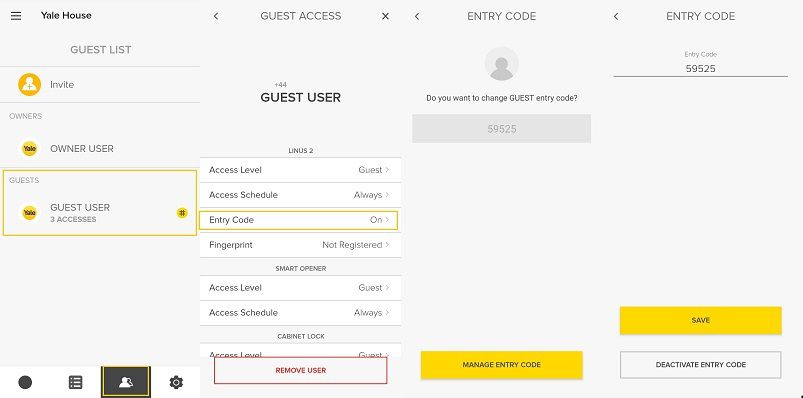
- Select the new Guest name, this will open the Guests access menu
- Select Entry Code, here you can use the suggested code or enter your own 4 - 6 digit code.
- Select Save Entry Code.
- Congratulations you have now set up Yale Home App access with an Entry Code, the Guest's name will appear in your guest list with a hash symbol next to it.
Yale Smart Lock owners have the ability to issue Always On, Temporary, and Recurring entry codes. If you have a keypad connected to a Yale Smart Lock, you can follow the instructions below to add an access schedule.
- Open the Yale Home App.
- Select Access from the dashboard.
- Click on the user whose entry code access you want to manage.
- Tap on Access Schedule.
- Choose Always, Recurring, or Temporary.
- The schedule you choose will apply for both App Access and Entry Code Access.
The Smart Keypad can be reset and removed from the app by following the process below-
- Ensure you are within Bluetooth range of the Keypad (4 metres).
- Open the Yale Home app and select All Devices from the dashboard.
- Select your Keypad.
- From Utilities, select Reset Keypad and follow the onscreen prompts.
- The Keypad has now been reset and removed from your Yale Home app.
To find Smart Keypad settings:
- Open the Yale Home app and select All Devices.
- Select the Yale Smart Keypad.
Details about each Keypad setting are outlined in the following table:
| Keypad Setting | Description |
| Enable/Disable Keypad* | Allows you to temporarily disable your keypad without needing to uninstall it. |
| One-Touch Locking* | Lock your door with just the Yale button. |
| Reset Keypad* | Removes the keypad from the associated lock. The reset code will be sent to your phone to complete this action. |
| Information | Includes hardware information such as battery level, serial number, and current firmware version. |
| Power Saving Mode* | Preserve battery life by enabling Power Saving Mode. Power Saving Mode disables the IR sensor, which prevents the Smart Keypad from detecting nearby motion. The keypad does not light up when a hand approaches if Power Saving Mode is enabled. |
To update your Yale Smart Keypad’s firmware please perform the following steps:
- Open the Yale Home App when you’re standing next to the keypad and select the lock the keypad is connected to.
- When prompted with the keypad firmware update alert, tap “start”.
- Press and hold the Yale button on the keypad for 5 seconds. You’ll see the progress bar indicate that a connection has been established and that the update has started.
- Remain on the update screen until the update completes.
- Your Smart Keypad is now updated.
Troubleshooting:
- If the firmware update process is interrupted you'll need to start over.
- If the update doesn't begin, try holding the Yale button down for 10 seconds instead of 5.
With the Hide Entry Codes lock feature, you have the option to add an extra layer of security when viewing personal entry codes in the Yale Home App, by adding your phone's built-in authentication. When the Hide Entry Codes lock feature is enabled, your phone’s authentication is needed to:
- View user entry codes
- Disable the feature
When this feature is disabled, Entry Codes are visible when you select the entry code in a guest’s profile. Enabling Hide Entry Codes provides an extra layer of security for you and other owners of your lock, because authentication is required to view the entry codes.
The FAQ below provides additional information about Hide Entry Codes
What products can I enable this feature for?
This setting works with any Yale Lock, or Yale Smart Keypad, set up to work with the Yale Home App via Wi-Fi or Bluetooth.
Who can see the Entry Codes of all users?
When this setting is enabled, any lock owner can see another user’s Entry Code after authentication.
How do I enable this feature?
To enable the Hide Entry Code feature:
- Open the Yale Home App.
- Select a Lock (with either an associated keypad, or with a built in keypad).
- Select the Settings icon from the top right.
- Under the Security, toggle Hide Entry Codes to on.
After you enable this feature, your phone’s authentication setting will run when you tap on Entry Code in the profile.
PLEASE NOTE: If the lock is not paired to an Wi-Fi bridge, a Bluetooth connection is required to see the Entry Code.
If I enable this feature, will it be enabled for other lock users?
If you enable the Hide Entry Code feature in your settings, the feature will also be enabled for other Owners of the associated lock.
I enabled this feature, but now it is disabled. Why?
If you enabled the Hide Entry Code setting, but it has been disabled, it is likely that another lock Owner disabled the feature in their settings.
The Yale Smart Keypad includes the capability to enable One-Touch Locking, meaning you can lock your Smart Lock just by pressing the Yale button on the bottom of the Keypad.
One-Touch Lock notifications are turned off by default, but notifications can be enabled in Keypad Settings.
PLEASE NOTE: One-Touch Lock notifications will only be received by the person who set them and you must have a Yale Connect Wi-Fi bridge to receive One-Touch Lock notifications.
The code limit for the Yale Smart Keypad is 220 unique codes. Once the limit is reached, existing codes will need to be removed (via the Yale Home app) to make room for new ones. After deleting a code, it is helpful to refresh the Yale Home app to push changes as they are made.
Lock Owners can delete and update keypad Entry Codes from within the Yale Home.
To make changes to entry codes for specific Guests:
- Select Access from the Yale Home App dashboard.
- Find the Guest entry for the code you wish to make changes to.
- Next, select the entry code, Manage Entry Code.
- Press Deactivate Entry Code to delete the Entry Code.
When the keypad's batteries are running low, the unit flashes red rapidly every 5 seconds. Battery level can also be checked in the Keypad's Settings from the Yale Home App.
The Smart Keypad requires 2 x AAA batteries. We recommend replacing both batteries every time they are replaced. To remove and replace the batteries in your Smart Keypad:
- Push in the tab on the underside of the Keypad to release the keypad from the back panel
- Remove the batteries
- Insert 2 x new AAA batteries
- Clip the keypad back onto the back panel
They keypad displays the following light activity:
Slow pulsing red LED: Setup mode
This lasts for 30 minutes and then stops if keypad setup is incomplete. To put the keypad in setup mode again, remove and reinsert one battery.
Pulsing LEDs after code entry: Establishing Bluetooth Connection
This lasts for 30 seconds. If the keypad is unable to establish a Bluetooth connection with the lock, the LEDs will stop pulsing and nothing else happens.
Rapid LED flashes: Batteries are low
If the batteries in the Keypad are running low on power and need to be replaced, the entire keypad will flash red rapidly every 5 seconds. The LEDs will stop pulsing once the batteries have been replaced with new ones.
If you need additional support
You can get a more visual help related to our products at our download center and in our library for support videos.

