1. Check to ensure the device has power- the Hubs white LED should be illuminated to indicate this. If it is not, then please check the Hubs power supply is plugged in, and that it is also connected to a working plug socket.
2. Ensure no warning LED's are present on the Smart Alarm Hub:
- White LED - This shows normal operation, and the unit is switched on. (Unless user has disabled this in the settings)
- Red LED (image of a cloud) - This shows the Hub is not communicating with the Yale cloud and is disconnected. This most likely means that there is an issue with the internet connection to the Hub.
- Orange LED (warning triangle) alerts you that the system needs attention. Check your Yale Home app to see what the warning relates to.
3. Ensure Bluetooth is turned on your mobile device for the initial setup stage, as the Alarm Hub would not be online and first communicates to the mobile device over Bluetooth.
4. Use your mobile device to check your internet connection, there are many free speed test apps available to assist with this.
5. If using an Ethernet connection, ensure one end of the cable is connected in the Yale Smart hub, and the other end is plugged into the back of your router.
6. Try rebooting your router and the alarm hub by following the process below:
- Remove the back plate from the hub.
- Unplug the power cable and Ethernet (if using) from the hub.
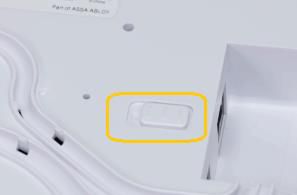
- Turn the battery switch off on rear of the hub (off means that the dot symbol will be visible).
- Restart your router and wait for your internet connection to come back online (usually within 3-5 mins).
- Reconnect the hubs power cable and also Ethernet (if using).
- Turn the hubs battery switch back to the on position.
- Allow 60 seconds for the alarm hub to come back online
7. If the steps above fail to resolve the issue, please contact Yale Customer Support.