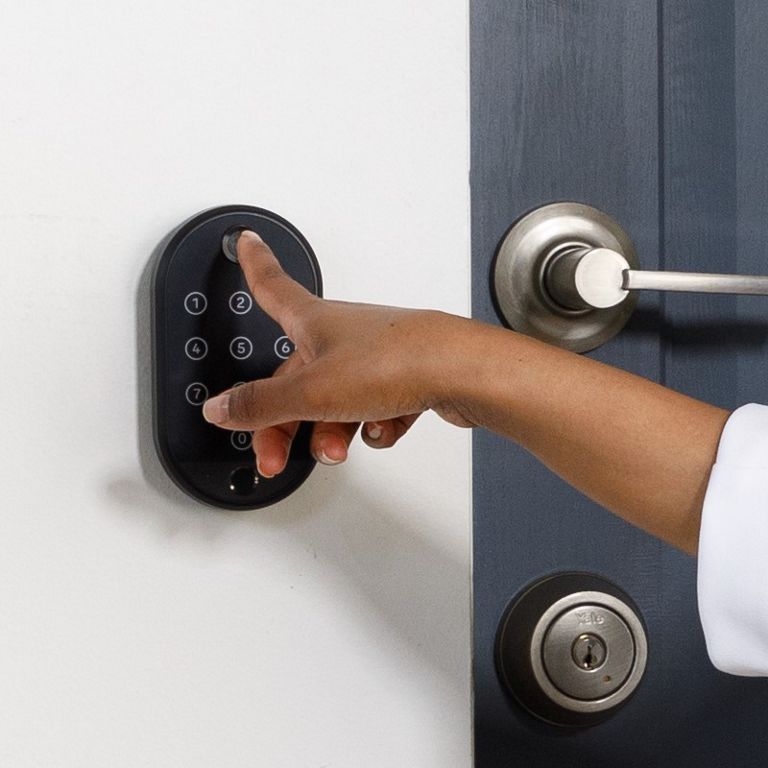
If the door fails to unlock after the user has entered the code into the Smart Keypad, pay attention to the number of buzzes. Functionality is built into the Smart Keypad to help diagnose potential issues with these sounds.
If the Keypad bleeps once, illuminating a row of orange LEDs after the code/fingerprint is entered and the door fails to unlock, the code was entered incorrectly. Try the code again to unlock the door. Keypad entry codes must be between 4 and 6 digits and you must press the green tick on the keypad after entering the code.
If the keypad bleeps once with a flashing row of Red LEDs after a code/fingerprint is entered and the door fails to unlock, this means the keypad is not communicating with the lock. The door will need to be unlocked via the app and once inside the property, reset the keypad.
Before attempting a reset: Ensure that you can connect the lock to the phone to make sure the issue isn’t with the lock batteries or the lock itself. If you find that the issue is the lock, try rebooting the lock first. To reboot the lock, remove one battery from the lock and replace it. Once you have rebooted the lock, try the entry code again. If this does not work, the Keypad must be reset.
We try to avoid resetting the keypad as this will reset all of the codes, but on occasion, a reset is necessary. If you do need to reset the keypad, do so through the Yale Home App:
- Open the Yale Home App.
- Scroll to the bottom of the dashboard and select All Devices.
- Select the Keypad.
- Select Reset Keypad found under Utilities.
- Select Disconnect, the keypad will then be reset.
- You will see a successfully reset message on the screen, this completes the disconnection process and your keypad is no longer connected to your lock.
This completes the steps needed to reset the keypad.
PLEASE NOTE: Resetting the keypad will wipe out all existing entry codes and they will need to be added back after the keypad is set up again.