Everyday Use with the Yale Smart Keypad 2 - Fingerprint
Here you can answers about Everyday Use with the Yale Smart Keypad 2 - Fingerprint
Five most common questions about Everyday Use with the Yale Smart Keypad 2
How to Disconnect a Smart Keypad
You must be within Bluetooth range of the keypad in order to disconnect the device from the lock.
- Open the Yale Home App.
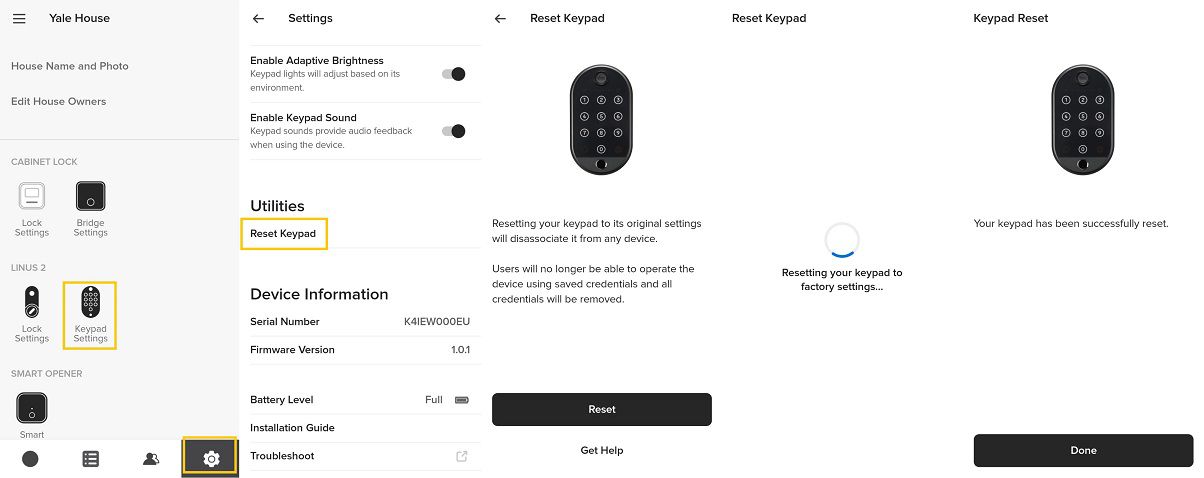
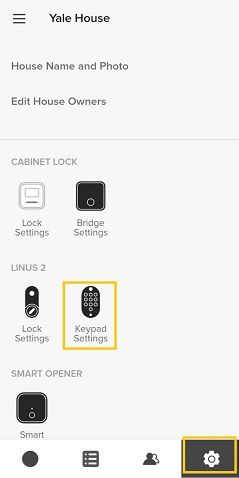
- Tap the gear in the icon bar and select keypad settings.
- Select reset keypad found under Utilities (you may need to scroll down the list).
- Select Reset, The keypad will then be reset.
- You will see a successfully reset message on the screen, this completes the disconnection process and your keypad is no longer connected to your lock.
Resetting a Yale Smart keypad 2 will delete all entry codes affiliated with that keypad.
How to Set Keypad Timed Access Codes
Yale Smart Lock owners have the ability to issue Always On, Temporary, and Recurring entry codes. If you have a keypad connected to a Yale Smart Lock, you can follow the instructions below to add an entry code.
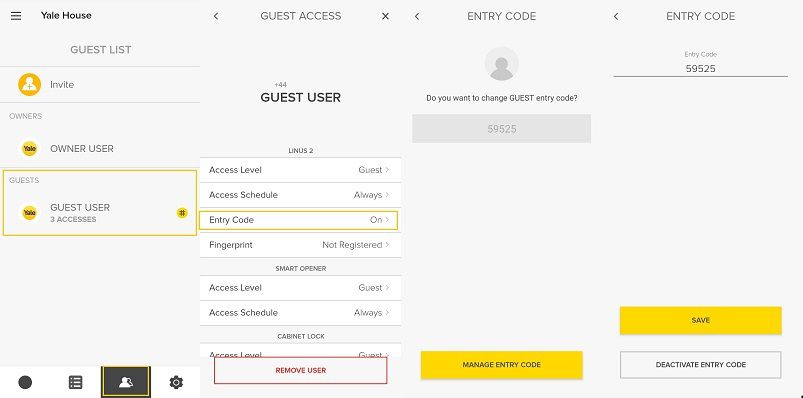
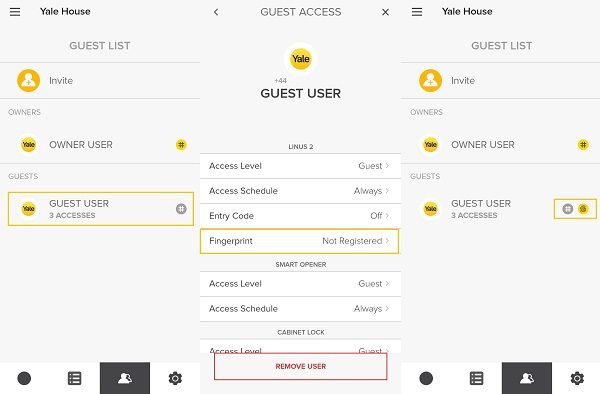
- Navigate to the Guest List.
- Click on the user whose entry code access you want to manage.
- Tap on Access Schedule.
- Choose Always, Recurring, or Temporary.
- The schedule you choose will apply for both App Access and Entry Code Access.
How to Update the Firmware on your Yale Smart Keypad 2
To update your Yale Smart Keypad 2 - Fingerprint firmware please perform the following steps:
-
Open the Yale Home App when you’re within Bluetooth range of the keypad and go to the lock status screen for the lock the keypad is connected to.
-
If there is an update available you will be prompted with the keypad firmware update alert, tap “start”.
-
Remain on the update screen until the update is complete.
-
How do I temporarily disable the Yale Smart Keypad 2?
In the event that you need to temporarily disable your keypad, you need to be within Bluetooth range of your keypad in order to complete the following steps:
-
Open the Yale Home App
-
Select the house from your Keychain
-
Click on the settings tab (Gear Icon) at the bottom of the screen
- In the Settings Menu, choose keypad Settings.
- Toggle the keypad Enabled option to "Off".
- The keypad is now disabled. To re-enable the keypad, go back through the steps and toggle keypad Enabled to "On".
PLEASE NOTE: One Touch Lock will also be disabled after you disable the keypad.
-
How do I know when the keypad's batteries need to be replaced?
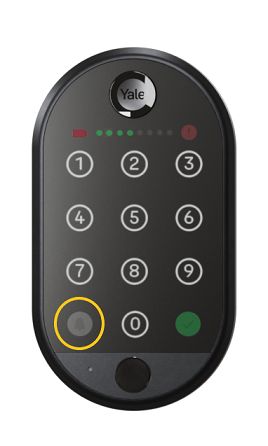
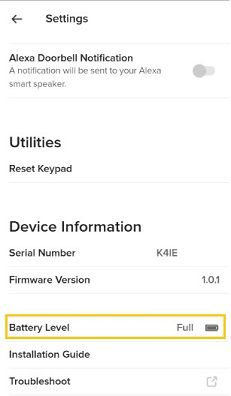
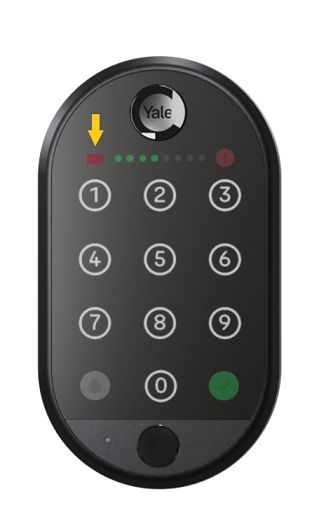
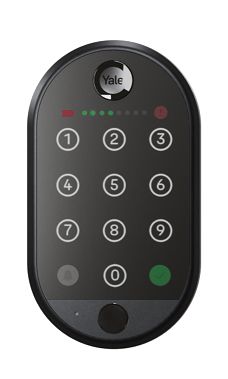
When the Yale Smart keypad 2 batteries are running low, The battery symbol on the keypad flashes red and an audible tone plays. In addition to this, Owners will also see an in-app low battery message pop up and receive an email notification. The Battery level can also be checked in the Settings menu for the associated keypad in the Yale Home App.
FAQ
If you need additional support
You can get a more visual help related to our products at our download center and in our library for support videos.
Download Center
Support Videos
