Types of smart alerts
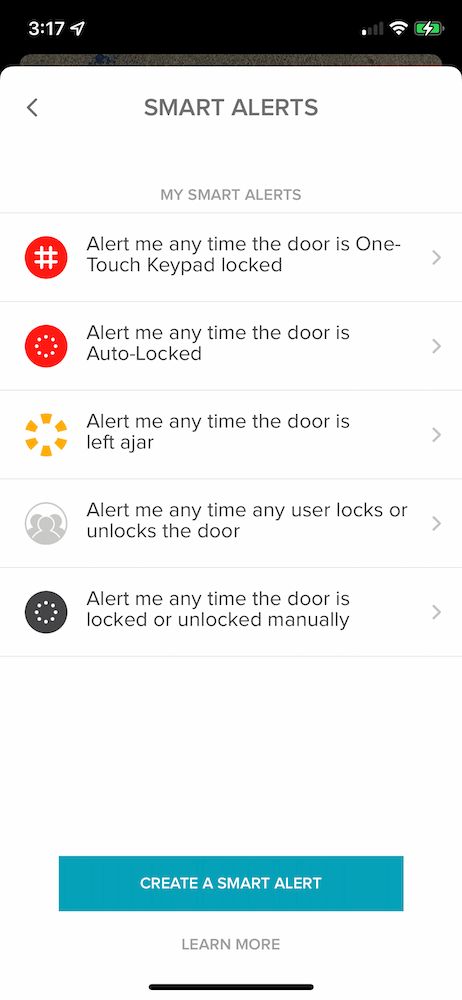
On launch, users can select from five alerts:
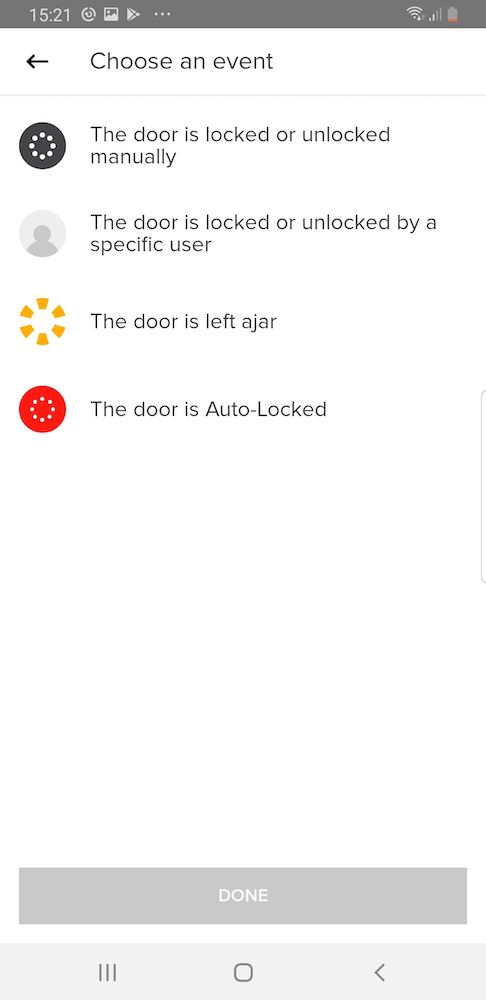
- The Garage/Gate is opened or closed manually
This alert notifies you when someon opene or closes a garage or gate manually by hand. - The Garage/Gate door is open/closes via the Yale Smart Opener by a specific user
This alert notifies you when a specified guest or owner operates the Yale Smart Opener. - The Garage/Gate is left ajar
This alert notifies you if the garage/gate is left open for a specific amount of time. Specify the amount of time in the settings. - The Garage/Gate is Auto-Closed
This alert notifies you when your Yale Smart Opener triggers Auto-Close. Auto-Close can be set up in the settings page. - The Yale Smart Opener is set to close using the One-Touch Keypad (only if Yale Smart Keypad is paired)
This alert notifies you when the Yale Smart Opener has been triggered to close using the One-Touch Lock feature on the Yale Smart Keypad.
Creating smart alerts
Smart Alerts can be found in the Notifications section of your Lock Settings menu. To enable smart alerts:
- Open the Yale Access App and navigate to the Lock Settings
- Select Smart Alerts
- Select the blue button that says "Create a smart alert"
- Next, select “Choose an event” to choose which event triggers the smart alert
Modifying and deleting smart alerts
Delete existing alerts at any time from the Smart Alerts page in the notifications section of Lock Settings.
All of your Smart Alerts are listed on the Smart Alerts page. To modify these notifications, tap on any of the notifications. You will be given the option to delete the selected notification by tapping the delete button at the bottom of the page.
Finally, confirm that you would like to delete the notification. You will no longer receive the notification following this action.